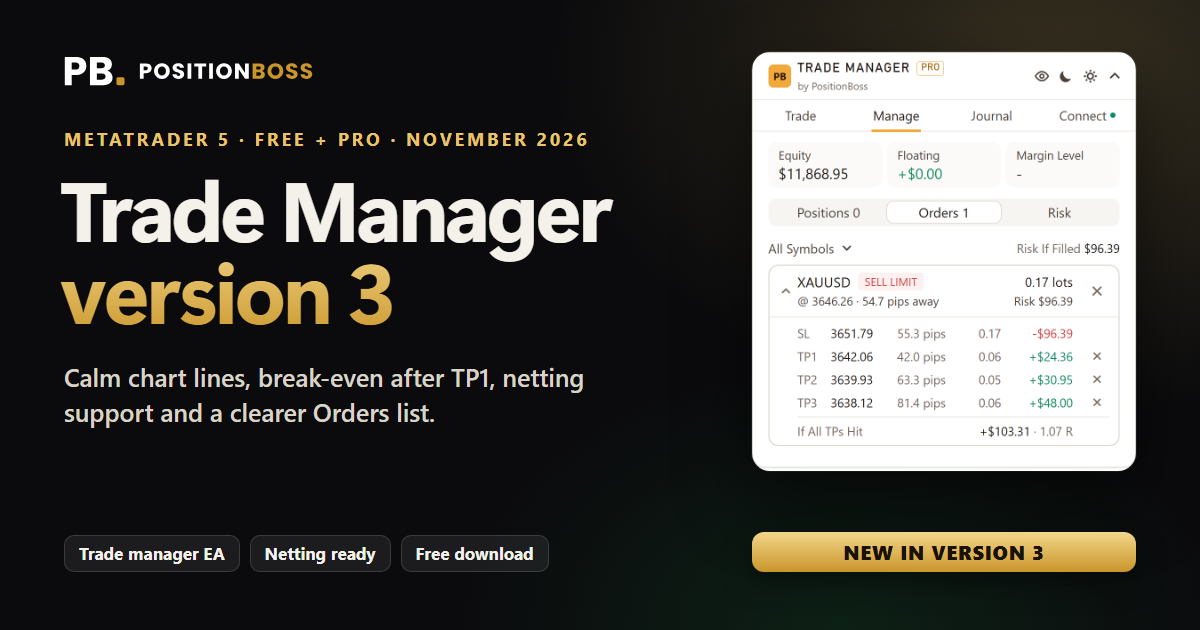
Key points
- Trade Manager is a trade manager EA for MetaTrader 5. One panel gives you lot size from your risk, a stop, up to 10 TPs, a journal and 13 safety rules.
- Version 3 came out on 24 November 2026, as one product in a free version and a PRO version. PRO adds calm chart lines, a TP lock, Hide TPs, break-even after TP1, TP2 or TP3, and a clearer Orders list.
- The free version gets three of the changes too: netting support, lot sizes from the real tick value, and a block on wrong-side TPs.
- The free version is a download with no sign-up and no time limit. PRO is on the MQL5 Market with a free demo.
What is a trade manager EA? The short answer
A trade manager EA is a small program for MetaTrader 5 that handles the busy work of a trade. It works out your lot size from your risk, sends the stop and targets with the order, and can move the stop or close parts for you. You still choose every trade.
Think of it as a co-pilot. You still fly the plane: you pick the market, the direction and the moment. The co-pilot runs the checklist, so a stop or a target never gets forgotten.
Trade Manager by PositionBoss is that kind of co-pilot for MT5. Version 3.00 came out on 24 November 2026, as one product in a free version and a PRO version. In the free version, the Manage and Connect tabs only show what PRO does.
What is new in Trade Manager version 3?
Version 3 is about calm and control. Your plan stays on the chart, your exits follow your rules, and an order that makes no sense never leaves the panel.
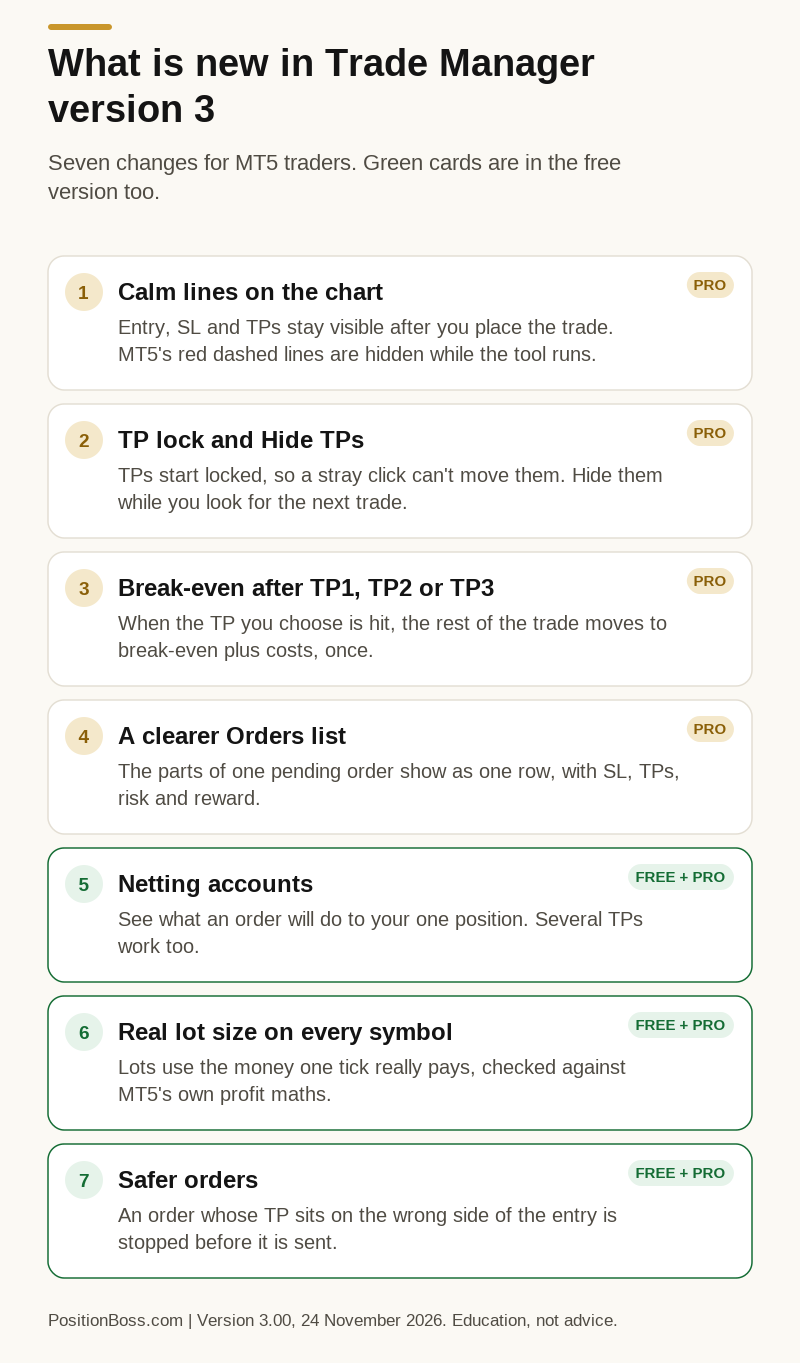
1. Calm lines that stay after you trade (PRO)
In older versions, the panel's planning lines left the chart once the trade opened. MT5's own red dashed lines took over.
Now the entry, the stop and the targets stay on the chart as thin, soft lines with small labels. MT5's red lines are hidden while Trade Manager runs, and they come back when you remove it.
On a hedging account every TP is a full line, because each TP is its own trade. On a netting account the last TP is a full line, and the nearer TPs are short lines beside the price scale.
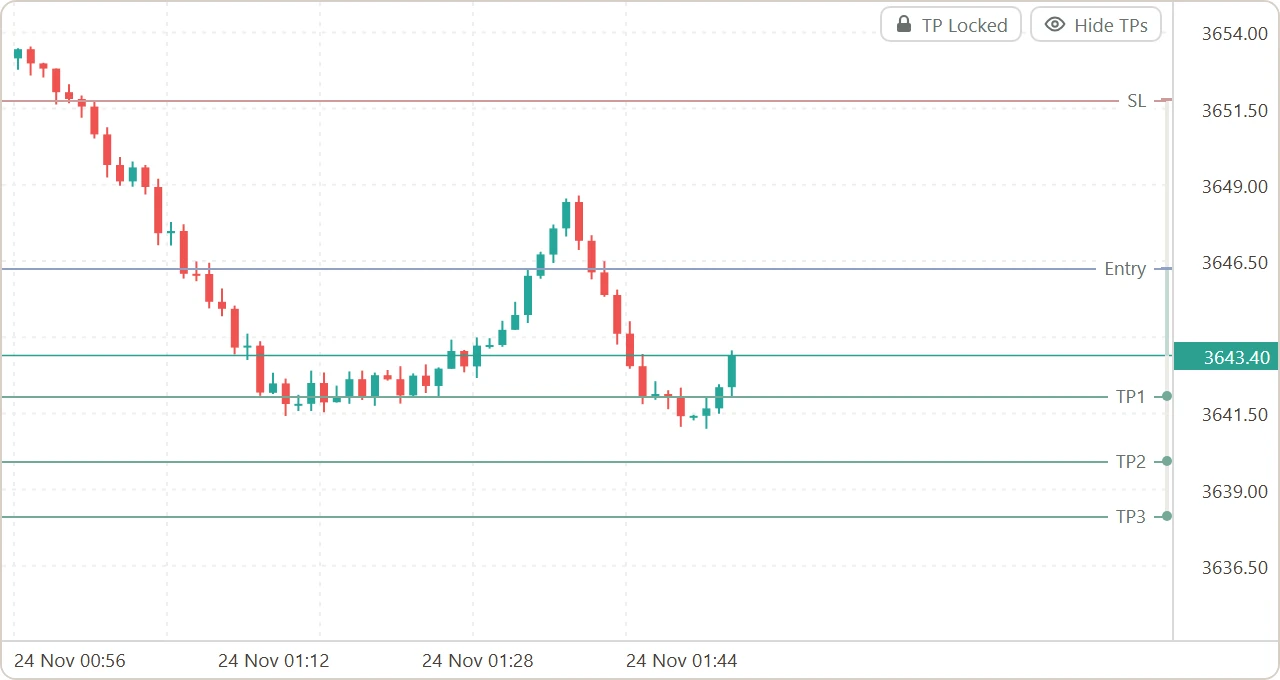
2. TP lock and Hide TPs (PRO)
Targets start locked, so a stray click cannot drag one away. Click TP Locked to switch the lock off, drag a target near the price scale, then lock them again. Only the targets are locked: you can drag the stop line at any time.
Hide TPs clears the target lines while you look for your next trade. Your targets stay active, and a small dot still marks each one.
3. Break-even after TP1, TP2 or TP3 (PRO)
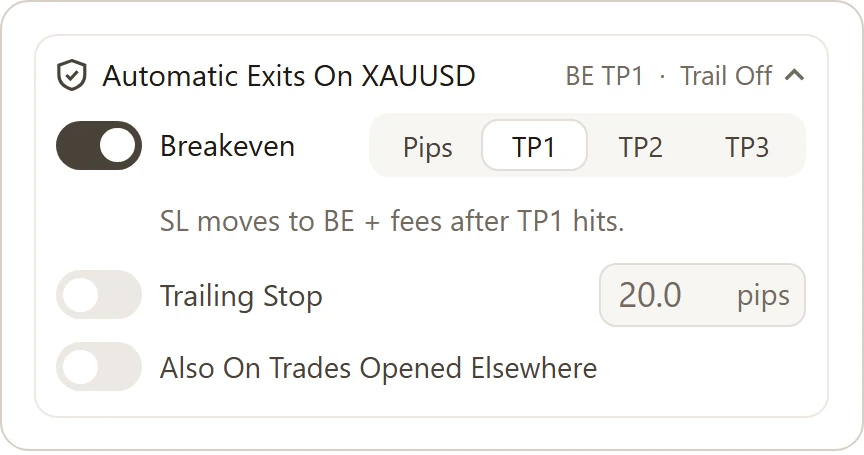
Many traders move the stop to break-even once the first target pays. Version 3 can do it for you. In the Manage tab, open Automatic Exits and pick Pips, TP1, TP2 or TP3.
Pips works as before: the stop moves once the trade is a set number of pips in profit. TP1, TP2 or TP3 waits for that target to be hit, then moves the stop of what is left, once.
The new stop sits at the entry plus enough to pay the trade's commission, fees and swap. The gold example below shows the maths.
4. A clearer Orders list (PRO)
In MT5, a pending order with three targets is three separate orders. That is easy to misread when you have several pairs waiting.
The Orders list now shows them as one row: the pair, the order type, the total lots, and how far price is from the entry. Open the row to see the SL and each TP, with its pips, lots and money after commission.
At the top, Risk If Filled adds up what you could lose if your pending orders fill and then hit their stops.
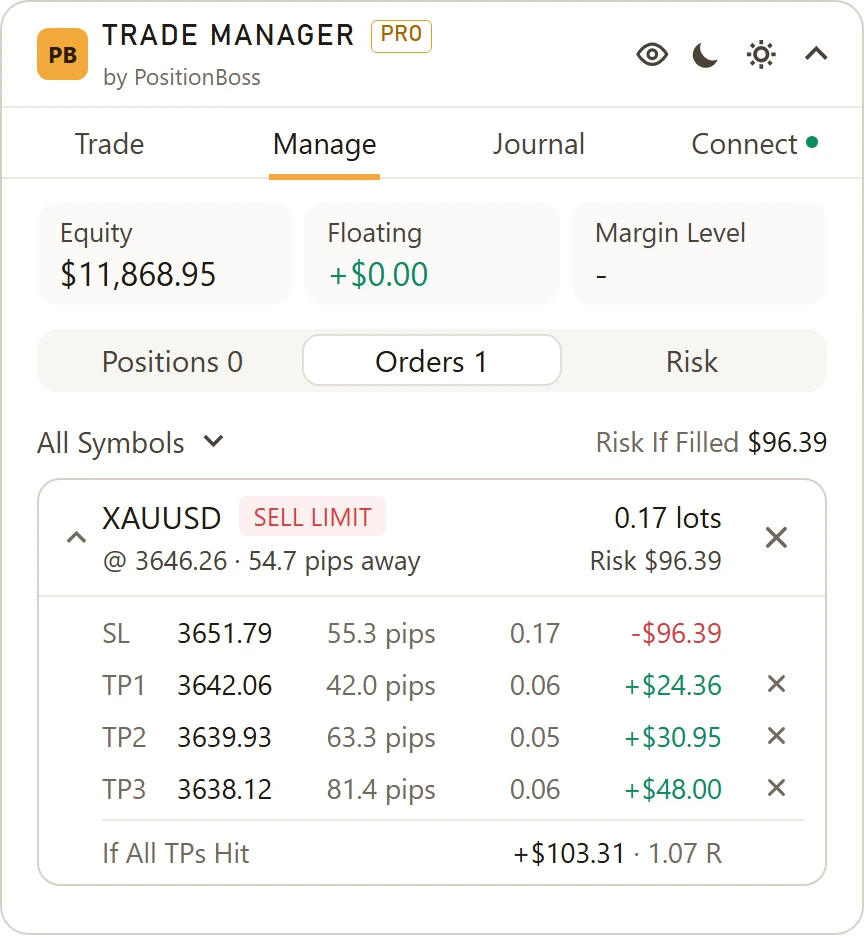
You can check the risk yourself. A 5.53 move on 0.17 lots of gold is 5.53 × 100 × 0.17 = $94.01. Add $14 × 0.17 = $2.38 of commission, and you get $96.39.
5. Netting accounts (free and PRO)
Netting accounts now take several TPs, and PRO's partial close works on them too. Before you place an order, the panel tells you what it will do to your open position. The netting section explains how.
6. Real lot size on every symbol (free and PRO)
Lot size now uses the money one tick really pays, checked against MT5's own profit maths, the OrderCalcProfit function. If you used an older version, check your lot size once on a demo account after updating.
7. Safer orders (free and PRO)
A Buy's TP must sit above the Buy price, and a Sell's TP below the Sell price. If a TP is on the wrong side, the panel stops the order and tells you which TP to move.
Smaller changes you will notice
- Break-even now pays each trade's commission, fees and swap.
- Close and Book Partial messages show the real closing result.
- Connect has new Running Trade messages: Send Update, Close Trade, Book Partial, Move SL To BE, Book Partial + BE and Hold Trade. They send a message only and never change your trade.
- Telegram messages now reply under the original signal.
- A new alert tells you if a stop loss or take profit could not be set.
The Trade Manager panel, tab by tab
The panel has four tabs, plus a gear icon for Settings. Trade, Journal and Settings come in full in the free version. Manage and Connect come with PRO.
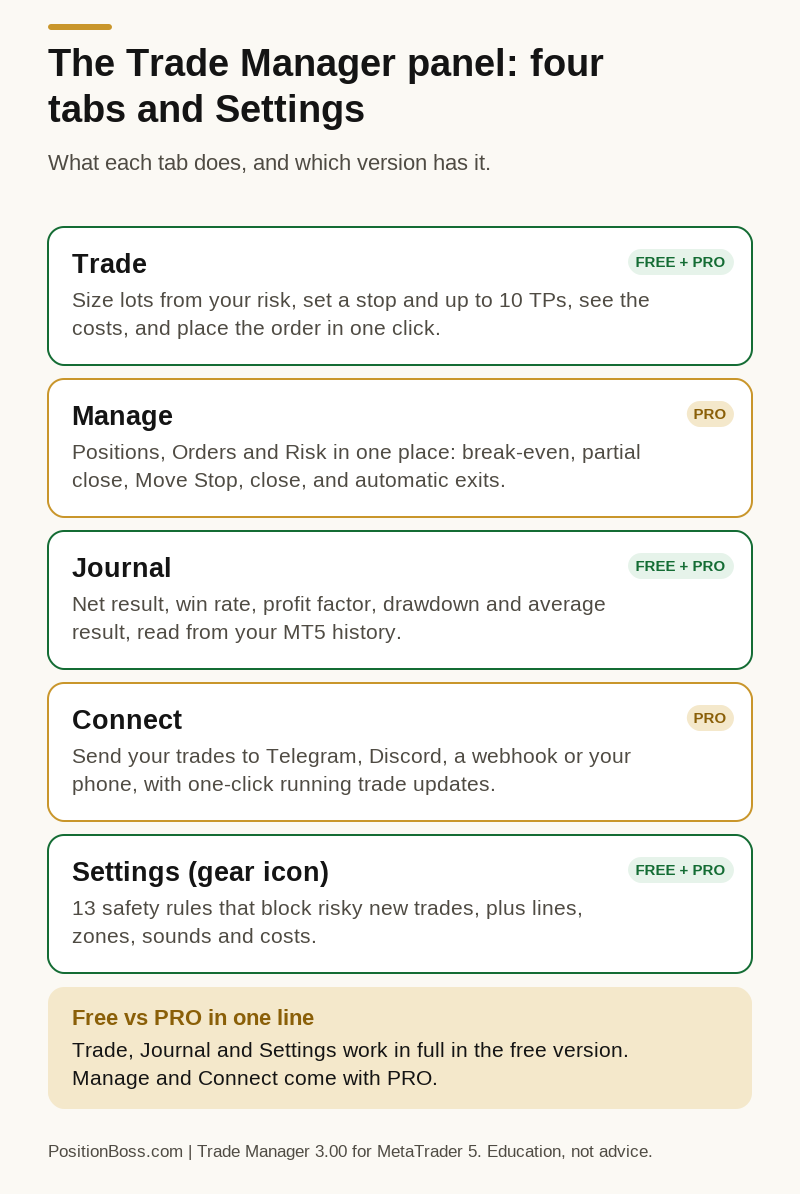
Trade: plan the order
Type your risk as a percent, an amount of money or a fixed lot size. Drag the stop line, and the panel works out the lots for you.
Add up to 10 TPs and split the lots between them. Choose a Market, Pending or Stop-Limit order, check the costs, and place it with one click.
A Place This Order? check shows the size, stop, targets and risk first. You confirm with Enter or cancel with Esc.
Manage: look after open trades (PRO)
Manage has three views: Positions, Orders and Risk. Positions gives you break-even, partial close, Move Stop and close for each trade.
Automatic Exits holds the break-even rule and a trailing stop that follows price at a fixed distance. One switch lets them act on trades opened elsewhere, such as on your phone.
Journal: learn from your results
The Journal reads your MT5 history. It shows your net result, win rate, profit factor, drawdown, average result and number of trades, in money. Our trading journal guide explains each number.
Connect: share your trades (PRO)
Connect sends your trades to Telegram, Discord, a webhook or your phone, in Clean, Emoji or Copier style. MT5 must allow the web address first, under Tools > Options > Expert Advisors.
Settings: 13 safety rules and more
Settings, behind the gear icon, hold 13 safety rules that block risky new trades. They never close a trade that is already open. Here you also set your lines, zones, sounds and costs.
Worked example: lot size on EURUSD, gold and US30
Say you risk $100 on a trade. The Trade tab divides that $100 by what one lot would lose at your stop. The maths below leaves out spread and commission to keep it simple.
| Symbol | Example trade | Stop size | Loss for 1 lot | Lots for $100 |
|---|---|---|---|---|
| EURUSD | Buy 1.16420, stop 1.16220 | 20 pips | $200 | 0.50 |
| XAUUSD | Buy 3,600.00, stop 3,595.00 | 50 pips ($5.00) | $500 | 0.20 |
| US30 (contract size 1) | Buy 46,000.0, stop 45,900.0 | 100 points | $100 | 1.00 |
| US30 (contract size 10) | Buy 46,000.0, stop 45,900.0 | 100 points | $1,000 | 0.10 |
EURUSD has 100,000 units per lot, so one pip (0.0001) is worth $10 per lot. Gold has 100 ounces per lot, so a $5.00 move is $500 per lot.
US30 is the trap. The same 100-point stop needs 1.00 lot at a broker with contract size 1, but only 0.10 lots where the contract size is 10.
That is why Trade Manager reads each symbol's numbers from your broker. To see them yourself, right-click the symbol in Market Watch and choose Specification. The full formula is in our lot size guide.
Break-even after TP1: a gold example
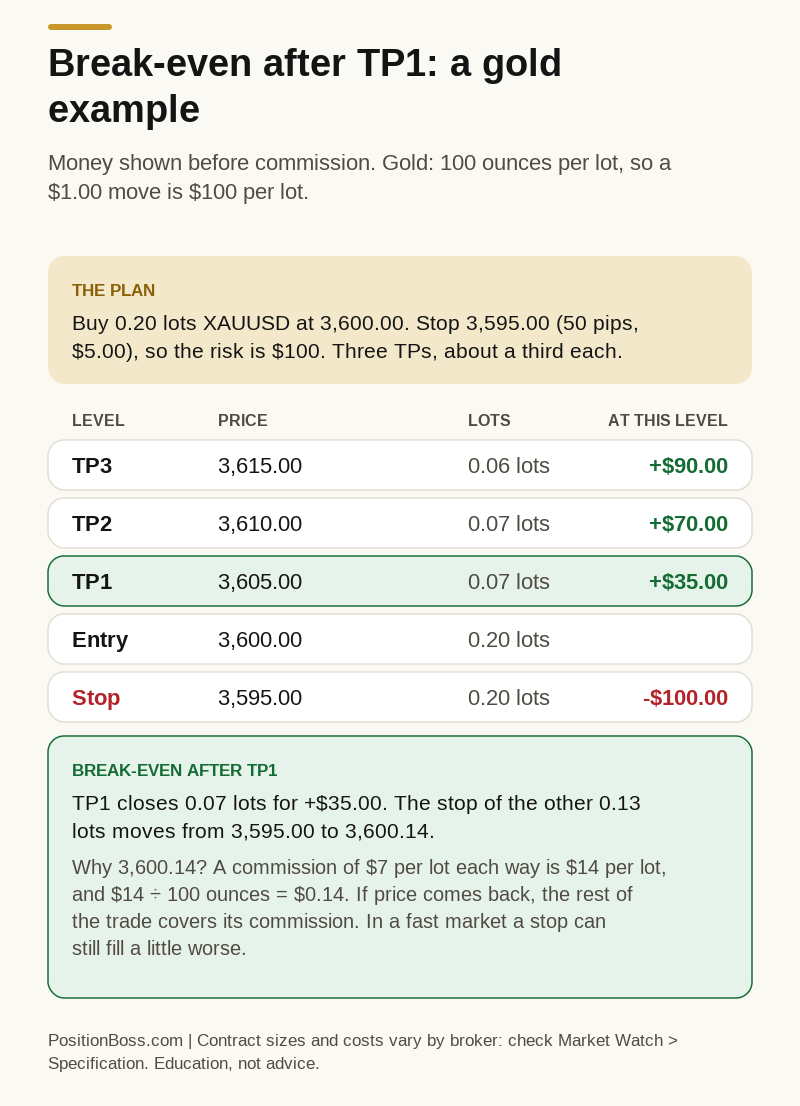
You buy 0.20 lots of XAUUSD at 3,600.00 with a stop at 3,595.00. That 50-pip stop risks $100, because 5.00 × 100 ounces × 0.20 lots = $100.
You set three TPs: 3,605.00 for 0.07 lots, 3,610.00 for 0.07 lots and 3,615.00 for 0.06 lots. If all three hit, you make $35 + $70 + $90 = $195 before commission.
With the rule set to TP1, here is what happens at 3,605.00. The first 0.07 lots close for +$35.00, and the stop of the other 0.13 lots moves to 3,600.14.
Why 3,600.14 and not 3,600.00? At $7 per lot each way, 0.13 lots cost $1.82 to open and close. A $0.14 move on 0.13 lots is also $1.82 (0.14 × 100 × 0.13), so the rest of the trade pays its own commission.
If price then turns, you keep the $35.00 from TP1, minus its own $0.98 of commission. That leaves +$34.02 on a trade that could have lost $100.
Two honest limits. The rule acts only while MT5 is running, and in a fast market a stop can fill a little worse than its price. Our break-even guide covers when to use it.
Best trade manager for netting accounts: what to look for
On a netting account, MT5 keeps one position per symbol. A deal in the same direction makes it bigger, and an opposite deal makes it smaller, closes it or turns it around.
A hedging account is different: each trade is its own position, with its own ticket. That is why several TPs are easy on hedging and hard on netting.
One position can hold only one TP at the broker. So the best trade manager for netting needs a plan for the other targets. Look for these four things:
- It tells you what an order will do before you place it: add to, reduce, close or reverse your position.
- It shows the risk of the whole position, not only the new order.
- It keeps the stop and the last TP at the broker, so they work even with MT5 closed.
- It closes the nearer TPs itself and remembers the plan after MT5 restarts.
Trade Manager version 3 does all four, in the free version and in PRO. Take the gold trade above on a netting account. The broker holds one 0.20-lot position with the stop at 3,595.00 and the TP at 3,615.00.
Trade Manager closes 0.07 lots at 3,605.00 and another 0.07 lots at 3,610.00 itself. The honest limit: those nearer TPs need MT5 to be running.
If your PC is off, the broker's stop and last TP still protect the trade. A VPS keeps the tool working, as our guide on EAs and a computer that is off explains.
| In Trade Manager 3 | Hedging account | Netting account |
|---|---|---|
| Positions per symbol | Several, each with its own ticket | One |
| Where the TPs live | Each TP at the broker | Last TP at the broker; the tool closes the nearer TPs while MT5 runs |
| Chart lines (PRO) | Every TP is a full line | Last TP is a full line; nearer TPs are short lines |
| Break-even after TP1 (PRO) | Moves the stop of the parts still open | Moves the stop of the one position |
| Wrong-side TP check | Yes | Yes |
What makes the best trade manager for MT5?
The best trade manager for MT5 is the one that fits how you trade. Use this checklist on any tool, ours included.
- It sizes lots from your risk, using your broker's own symbol numbers.
- It sends the stop and targets with the order, so the broker holds them.
- It works on both netting and hedging accounts.
- It says clearly which actions need MT5 to stay open.
- It needs no DLL, so it can run on the MQL5 virtual hosting service.
- It lets you try it first, with a free version or a free demo.
- It keeps a journal, so you can learn from your results.
Here is how version 3 compares with doing each job by hand. For a side-by-side look at six popular tools, read our comparison of MT5 trade managers.
| Job | By hand in MT5 | With Trade Manager 3 |
|---|---|---|
| Lot size for $100 of risk | Work it out, then type the lots | Drag the stop; the lots appear |
| Three TPs | Three orders, each typed by hand | One click, up to 10 TPs |
| Break-even after TP1 | Watch the chart, then drag the stop | Done once, by the rule (PRO) |
| Several TPs on netting | Close each part by hand | The tool closes the nearer TPs while MT5 runs |
| Risk of pending orders | Add up each order yourself | Risk If Filled at the top of Orders (PRO) |
| Your results | Read the History tab or a spreadsheet | The Journal tab |
Free trade manager download: free vs PRO
The free Trade Manager is a full tool, not a trial. It has no time limit and needs no sign-up: download it, copy one file into MT5, and use it.
| Feature | Free 3.00 | PRO 3.00 |
|---|---|---|
| Lot size from your risk, planning lines on the chart | Yes | Yes |
| Up to 10 TPs; Market, Pending and Stop-Limit orders | Yes | Yes |
| Netting support, wrong-side TP check, real tick value | Yes | Yes |
| 13 safety rules and the Journal | Yes | Yes |
| Calm lines for open trades, TP lock, Hide TPs | - | Yes |
| Manage tab: break-even rules, trailing stop, partial close, Orders list | - | Yes |
| Connect tab: Telegram, Discord, webhook, phone | - | Yes |
| Where to get it | Download from this site | MQL5 Market, free demo first |
You can download the free version here. PRO is sold on the MQL5 Market, the official store for MetaTrader programs.
You can try PRO first in a free demo in the MT5 Strategy Tester. See the current plans in our pricing section.
How to install or update to version 3
The free version
- Download TradeManager.zip and unzip it.
- In MT5, open File > Open Data Folder > MQL5 > Experts. Copy TradeManager.ex5 there, then restart MT5.
- Drag Trade Manager onto a chart and allow Algo Trading.
To update, put the new TradeManager.ex5 in the same folder in place of the old one, then restart MT5.
PRO
- Rent or buy it on the MQL5 Market, logged in with your MQL5 account.
- In MT5, open Toolbox > Market > Purchased, then click Install.
- Drag Trade Manager PRO onto a chart and allow Algo Trading.
Updates are free, and you install them from the same Purchased list. After any update, check your lot size once on a demo account. Our install guide walks through each step.
Why we built version 3
Trade Manager began with one idea: the dull jobs of a trade should never cost you money. A wrong lot, a missing stop or a forgotten break-even can undo a week of good decisions.
Every change in version 3 started as a real moment on the chart. Targets vanished once the trade opened, break-evens were forgotten, and netting accounts could hold only one target.
We drew each change first, checked every number, and built it into the free version wherever it fits. A trader who is just starting deserves safe tools too, and we will keep improving them with every update.
Summary
Trade Manager version 3 keeps your plan on the chart, moves your stop to break-even after the TP you choose, and shows pending orders clearly. It also handles netting accounts with several TPs, in the free version too.
Start with the free download on a demo account. If you want the Manage and Connect tabs, try PRO in its free MQL5 demo.
Questions
Is Trade Manager free?
Yes. The free version has the Trade, Journal and Settings tabs in full, with no time limit and no sign-up. PRO adds the Manage and Connect tabs and is sold on the MQL5 Market, with a free demo first.
Does Trade Manager work on netting accounts?
Yes, from version 3, in both the free version and PRO. Your broker holds the stop and the last TP, and Trade Manager closes the nearer TPs while MT5 is running.
Is there an MT4 version of Trade Manager?
No. Trade Manager is built for MetaTrader 5 only. MT4 programs do not run in MT5, and MT5 programs do not run in MT4.
Do my TPs still work after I click Hide TPs?
Yes, Hide TPs only hides the lines. On hedging, each TP stays at your broker. On netting, the last TP stays there, and Trade Manager keeps the plan for the nearer ones.
Do I need to keep MT5 open?
Your stop and the TPs held by the broker work even with MT5 closed. Break-even, the trailing stop and the nearer TPs on netting need MT5 running, so many traders use a VPS.
Sources (checked 24 November 2026)
- MetaTrader 5 Help: netting and hedging position accounting
- MQL5 Reference: OrderCalcProfit (the profit for the current account and market)
- Tickmill: EURUSD specification (contract size 100,000)
- TNFX: XAUUSD specification (100 ounces, two digits)
- Tickmill: US30 specification (contract size 1)
- Eightcap: US30 (contract size 10)
- MQL5 Reference: WebRequest (the allowed web address list)
- MetaTrader 5 Help: migration to virtual hosting (no DLLs)
- MQL5 Market: Trade Manager Pro by PositionBoss (version 3.00, 24 November 2026)
This guide is education, not financial advice. Break-even and TP rules cannot stop gaps or slippage, and the actions the EA takes itself need MT5 to be running. Trading forex, gold and indices with leverage carries a high risk of losing money.